 how-to
How to Prioritize VoIP Traffic With QoS
Table of Contents
- Step 1: Map Your Network and Measure VoIP Bandwidth Requirements
- Step 2: Classify Voice Packets and Separate RTP From SIP Signaling
- Step 3: Apply DSCP Marking for VoIP and Set EF (46) on RTP Streams
- Step 4: Configure Router QoS Settings for VoIP Priority Queues
- Step 5: Tune for VoIP Jitter and Packet Loss Across the WAN
- Step 6: Validate End-to-End and Measure Call Quality With MOS
- Common Mistakes and Rollback Guidance
- Frequently Asked Questions
Last Updated: October 12, 2026
Step 1: Map Your Network and Measure VoIP Bandwidth Requirements
You cannot prioritize VoIP traffic with QoS until you know how much VoIP traffic your network actually carries. That is where most rollouts go wrong. Teams enable QoS, assume it works, and then calls still break up during busy hours.
This guide walks through the six steps to set up voice priority on a network. Below, we show you exactly how to size, mark, queue, and test voice traffic so calls stay clear under load.
Voice is unforgiving. Data traffic can wait a few hundred milliseconds. A phone call cannot. That single difference drives every decision that follows.
Calculating concurrent call bandwidth
Start with a simple count: how many calls happen at once during your busiest hour?
Then size each call. A common planning figure is about 87 Kbps per call on the wire for a G.711 stream, once you add IP, UDP, RTP, and Ethernet overhead on top of the 64 Kbps payload (Modify Bandwidth Consumption Calculation for Voice Calls). G.729 compresses that to roughly 26 Kbps per call.
Multiply calls by per-call bandwidth, then add 20-30% headroom for signaling, retransmits, and growth.
- 10 concurrent calls at G.711: about 870 Kbps
- 25 concurrent calls at G.711: about 2.2 Mbps
- 50 concurrent calls at G.711: about 4.4 Mbps
Identifying WAN uplinks and congestion points
Voice rarely dies on the LAN. It dies at the uplink.
Check these spots first:
- The WAN circuit at each site
- Site-to-site VPN tunnels
- Any oversubscribed switch uplink
- The path to your SIP provider
Pull interface graphs for a full week. Look for the hour where outbound traffic hits 70% or more of link speed. That is your congestion point, and that is where queueing has to happen.
Step 2: Classify Voice Packets and Separate RTP From SIP Signaling
Voice traffic is not one stream. It is two, and they behave differently.
RTP carries the actual audio. It is a steady stream of small UDP packets sent every 20 milliseconds. RTP needs low latency, low jitter, and near-zero loss.
SIP sets up and tears down calls. It is bursty, uses TCP or UDP on ports 5060 and 5061, and can tolerate a little delay. It cannot tolerate loss, because a dropped SIP packet can kill a call setup.
So classify them into separate service classes:
- RTP media: highest priority, tightest latency budget
- SIP signaling: high priority, but below media
- Everything else: best effort or lower
You classify by access list or by protocol and port. On most routers you match UDP source and destination ranges for RTP, then match SIP ports separately. This keeps signaling from stealing queue slots that media needs.
A common mistake is lumping all voice into one class. When a call setup burst hits, it can push media packets behind it and cause a jitter spike.
Step 3: Apply DSCP Marking for VoIP and Set EF (46) on RTP Streams
DSCP marking is how a phone tells the network what its packets are worth. The standard value for voice media is EF, or DSCP 46 (Expedited Forwarding).
Set it at the source whenever you can. Most business IP phones and softphones let you mark RTP as EF and SIP as AF31 or CS3. Marking at the edge is cleaner than re-marking in the core, because the device that creates the packet knows best what it is.
If your endpoints cannot mark, mark at the access switch or the router using a policy-based QoS rule that matches RTP port ranges.
Trust boundaries and protecting your markings
Never trust markings from the internet. Anyone can send a packet marked EF.
Set a trust boundary at your edge:
- Trust DSCP from your own phones and voice gateways
- Re-mark or drop EF from untrusted sources
- Police EF traffic so it cannot exceed your voice bandwidth plan
This is also a security control. Without a trust boundary, a misconfigured or malicious host can flood the EF queue and starve real calls.
Step 4: Configure Router QoS Settings for VoIP Priority Queues
Now the markings need somewhere to go. That means a priority queue on the outbound interface.
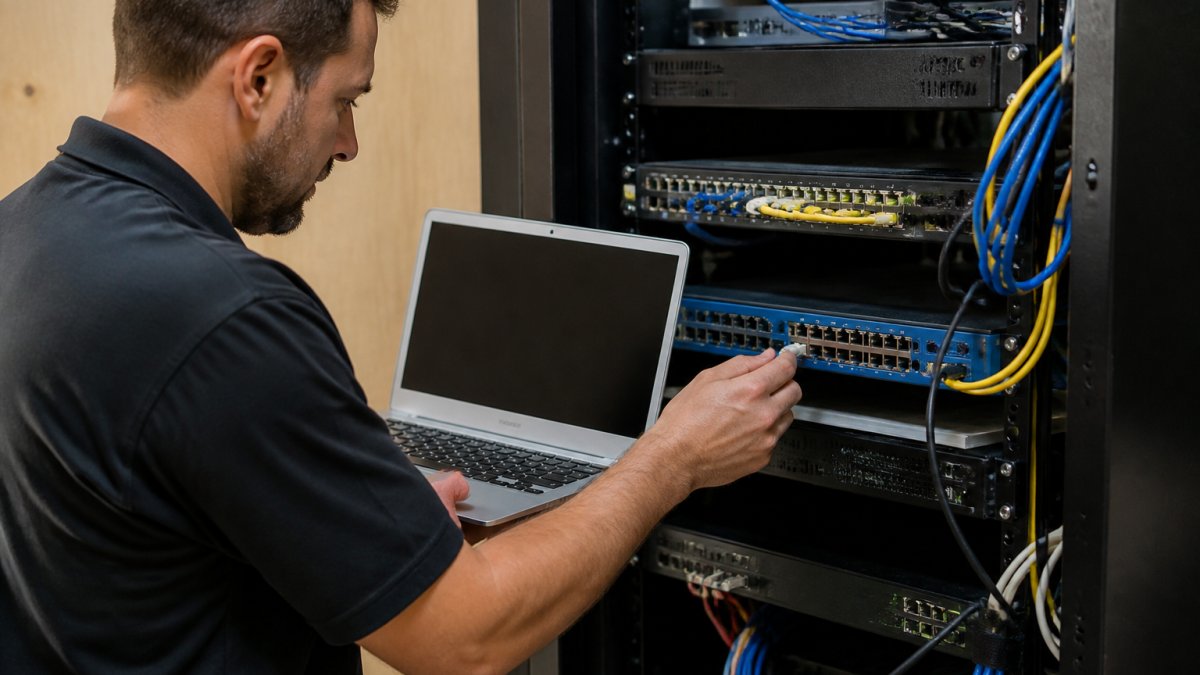
The pattern is the same on almost every platform:
- Create a class map that matches EF traffic
- Create a policy map that assigns EF to a priority queue
- Apply the policy to the outbound WAN interface
- Set a bandwidth limit on the priority queue
On Cisco IOS, that is a class-map matching dscp ef, a policy-map with priority and a Kbps value, and service-policy output on the interface. Other vendors use different syntax but the same logic.
Remember the direction: QoS shapes outbound traffic. You control what leaves your router, not what arrives from your provider.
Low-latency queueing and priority queue limits
A priority queue is strict. It always gets served first. That is exactly what voice needs.
But strict priority without a limit is dangerous. If you let EF grow without bound, it can starve every other class.
So cap it. Set the priority queue to your calculated voice bandwidth plus a small margin. On many platforms the priority command takes a Kbps value, or you can use a percentage of link speed. Keep it under about 33% of the link on slower circuits.
Step 5: Tune for VoIP Jitter and Packet Loss Across the WAN
VoIP jitter and packet loss are what your users actually feel. Jitter is variation in packet arrival time. Packet loss is packets that never arrive.
Targets to aim for:
- Latency under 150 ms one way
- Jitter under 30 ms
- Packet loss under 1%
QoS helps most when the WAN link is congested. It does nothing if the provider's network is the bottleneck. That is why you test the path, not just your router.
Practical tuning steps:
- Enable a low-latency queue for EF on every hop you control
- Use a shaper on the WAN interface so you queue before the provider does
- Turn on RTP header compression on slow links to cut per-packet overhead
- Check your SIP provider's recommended codec and match it
If jitter stays high after tuning, the problem is usually upstream. Ask your provider for a latency and jitter report on the voice path.
Step 6: Validate End-to-End and Measure Call Quality With MOS
Configuring QoS is half the job. Proving it works is the other half.
MOS (Mean Opinion Score) is a 1-to-5 rating of call quality. Anything at 4.0 or above sounds good to most users. Below 3.6, people start complaining.
How to validate:
- Run a voice-quality test tool across the real path, not a lab
- Capture RTP streams and check for gaps and out-of-order packets
- Compare MOS before and after QoS on the same congested link
- Repeat the test during peak hours
Check every hop: phone, switch, router, WAN, provider, and the far end. A clean router means nothing if a switch uplink is dropping packets.
If MOS holds steady during peak load, your setup works. If it dips, go back to Step 1 and recheck your bandwidth math.
Common Mistakes and Rollback Guidance
The same errors show up on almost every voice QoS project. Here is how to avoid them.
| Mistake | What Happens | Fix |
|---|---|---|
| Trusting DSCP from the internet | Fake EF floods the priority queue | Set a trust boundary at the edge |
| Priority queue set too large | EF starves other traffic | Cap the queue to voice bandwidth |
| Marking only at the core | Markings lost or overwritten | Mark at the phone or access switch |
| Forgetting the shaper | Router queues after the provider | Shape to slightly below link speed |
| Skipping validation | Problems surface only in live calls | Test MOS during peak hours |
Rollback matters too. Before you apply a QoS policy, save the current config. Apply changes in a maintenance window. If calls get worse, remove the service policy from the interface and restore the saved config. Test one site before rolling out to all of them.
A common mistake is applying QoS everywhere at once. Start with your worst-performing site, prove the result, then copy the working template.
Frequently Asked Questions
Which DSCP value should I use to prioritize VoIP traffic?
Mark RTP media streams with DSCP 46, the Expedited Forwarding class. That single value puts voice packets into the strict priority queue on most routers and switches. SIP signaling usually gets DSCP 24 (CS3) so call setup stays responsive without competing with live audio. Keep the marking consistent end to end, because a mismatch between your phone, switch, and router will drop voice back into the best-effort queue.
How much bandwidth does a single VoIP call need?
A G.711 call uses about 87 kbps once you add IP, UDP, and RTP overhead, while G.729 drops to roughly 31 kbps. Multiply that by your peak concurrent calls, then add 30 percent headroom for signaling and retransmits. For 20 simultaneous G.711 calls, plan for about 2.3 Mbps of reserved voice bandwidth on the uplink. Sizing queues below that number causes drops exactly when call volume peaks.
How can I test whether QoS is improving VoIP call quality?
Check MOS scores before and after your changes. A score above 4.0 means most users will not notice problems, while anything under 3.6 points to jitter, latency, or packet loss. Run the same test during peak hours, not at 9 a.m. on a quiet day. If MOS stays flat, your marking or queue configuration is not taking effect somewhere along the path.
Does QoS prioritize voice traffic on Wi-Fi as well as wired networks?
Yes, but only if your access points honor WMM (Wi-Fi Multimedia) and you enable it. Wired QoS markings do not automatically carry over the air, so set the phone or softphone to tag its own traffic and confirm the AP maps those tags into the voice access category. Without WMM enabled, voice packets compete with file transfers and video on the same radio, which shows up as jitter on calls.
Voice problems cost you customers, and QoS missteps cost you time. At VegaMSP, we handle this end to end through our Secure-IT-In-The-Box model: fully managed network services, VoIP integration, and endpoint security, all backed by unlimited helpdesk support. We size your bandwidth, mark and queue your voice traffic, and validate call quality so downtime stops being a weekly event. Get started with VegaMSP and scale your business with confidence.